Transactions
Overview
Transactions are the core of Finapp. Every financial operation - a purchase, salary, or transfer between accounts - is recorded as a transaction.
Transaction Types
| Type | What it does | When to use |
|---|---|---|
| Expense | Decreases wallet balance | Daily spending, bills, subscriptions |
| Income | Increases wallet balance | Salary, freelance, gifts |
| Transfer | Moves money between wallets | ATM withdrawal, currency exchange, moving savings |
| Adjustment | Corrects wallet balance | Found discrepancy, lost cash, initial balance |
Creating a Transaction
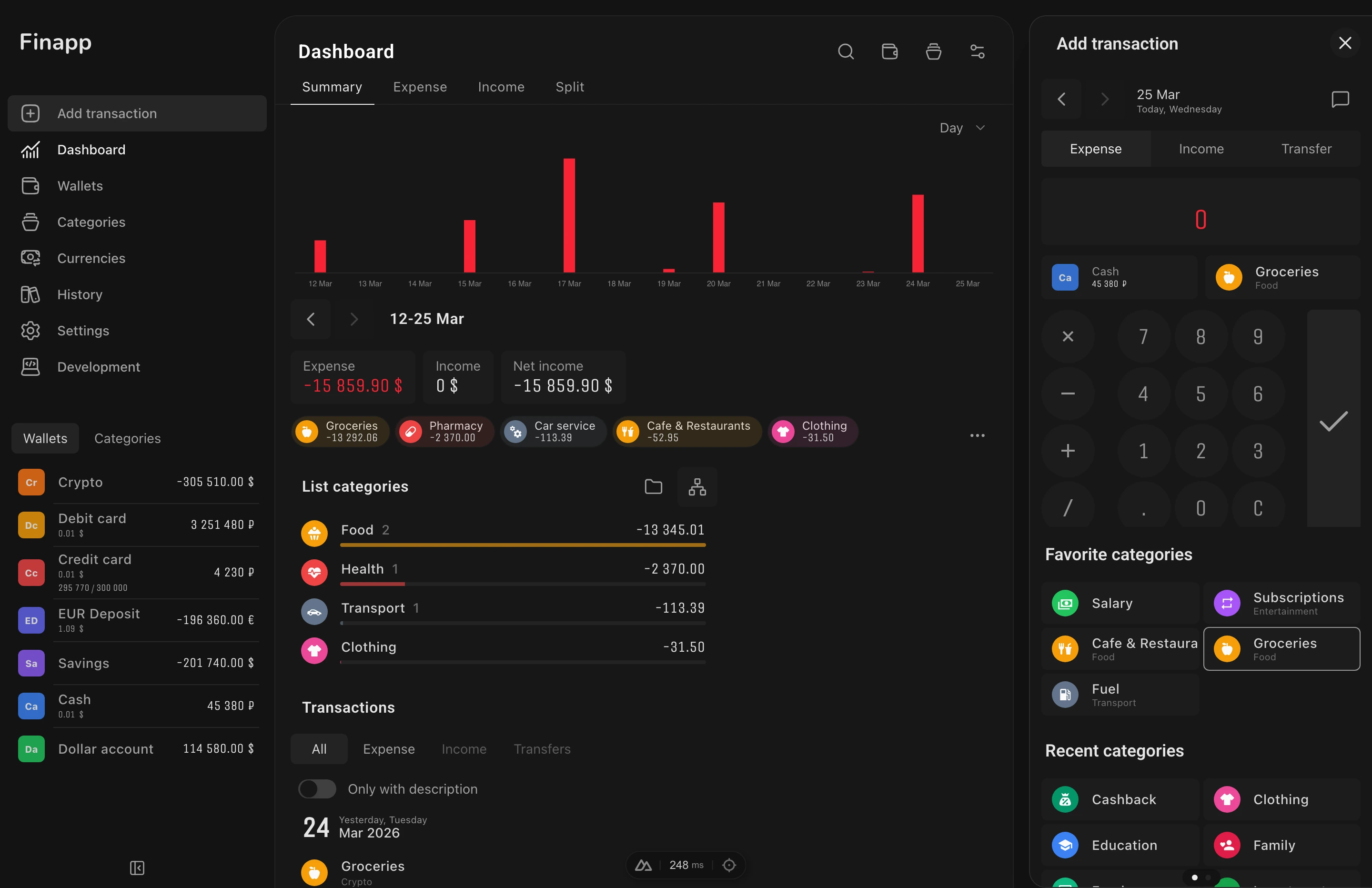
Desktop: click the floating button on the right side to open the form in a sidebar. The sidebar has two slides: the main form and a transaction history slide with filter tabs (all transactions / by wallet / by wallet + category). Keyboard shortcut: Cmd+G.
Mobile: tap the center button in the bottom bar. The form opens as a bottom sheet with three slides:
- History - recent transactions filtered by current date/wallet/category. Tap to edit.
- Form (default) - main input: amount with calculator, type toggle, category and wallet selectors, date picker, description.
- Quick selector - wallets grid (up to 5) and categories. Tap to select and return to the form.
How quick category selection works
Categories on the quick selector slide are displayed in priority order:
- Favorites - categories with the "Favorite" setting enabled. Shown first in a separate section. Configured manually in each category's settings.
- Recent - categories from your latest transactions (up to 16). Sorted by most recent usage date. Don't overlap with favorites - if a category is already in favorites, it won't appear in recent.
- All categories - if there are no favorites and no recent categories, all available categories are displayed.
You can control visibility in each category's settings: Favorite (show in quick selector) and Recent (show in the recent list).
Type Toggle
Switch between Expense, Income, and Transfer at the top of the form. The Transfer tab only appears when 2+ wallets exist.
Calculator
The amount field has a built-in calculator with buttons for +, −, ×, ÷ and decimal point. Enter an expression like 150+50 - the submit button changes to = to confirm the calculation. After pressing =, it shows the result and the submit button becomes a checkmark.
Long-press the C (clear) button to reset all amount fields.
Category Selector
Opens a Command Palette (searchable list). Adjustment appears as the first option. Other categories are grouped by parent. Type to search by name.
Wallet Selector
Shows the current wallet with icon, name, currency, and balance. Tap to open the wallet list.
Date Picker
Shows the selected date with day, month, and weekday. Navigation buttons: previous day, today, next day. Tap the date to open a calendar. Future dates are not allowed.
Description
Tap the message icon button in the calculator area to add an optional text note. A dot indicator appears on the icon when a description is set.
Submit Button
- Checkmark - ready to save (amount > 0)
- Equals - calculator expression entered, press to calculate first
- Disabled - amount is 0
Validation
The form checks before saving:
- Amount must be greater than 0
- Wallet must be selected
- Category must be selected (except for transfers)
- For transfers: expense and income wallets must be different
Adjustments
Balance corrections that don't count as income or expense. Use when your actual wallet balance differs from what Finapp shows.
- Income + Adjustment - increase balance
- Expense + Adjustment - decrease balance
When to use adjustments
Initial balance. You created a "Cash" wallet, but you already have $500 on hand. Create an income adjustment for $500 - the wallet balance becomes correct without showing a false income in statistics.
Discrepancy with reality. Finapp shows $320 in cash, but you actually have $300. Create an expense adjustment for $20 - the balance evens out without distorting expense statistics.
Cashback or bonuses. You received $15 cashback on your card. It's not income in the usual sense, but the balance changed. An income adjustment reflects the balance change without inflating income statistics.
Duplicating
Click any transaction to open it, then use the duplicate action. The form opens pre-filled with all data from the original transaction (amount, category, wallet, date, description) - ready to save as a new record. Useful for recurring expenses.
Editing and Deleting
Click any transaction in the history or statistics to open it in the form. Edit and save, or delete with the trash icon. A confirmation dialog prevents accidental deletion.
History Page
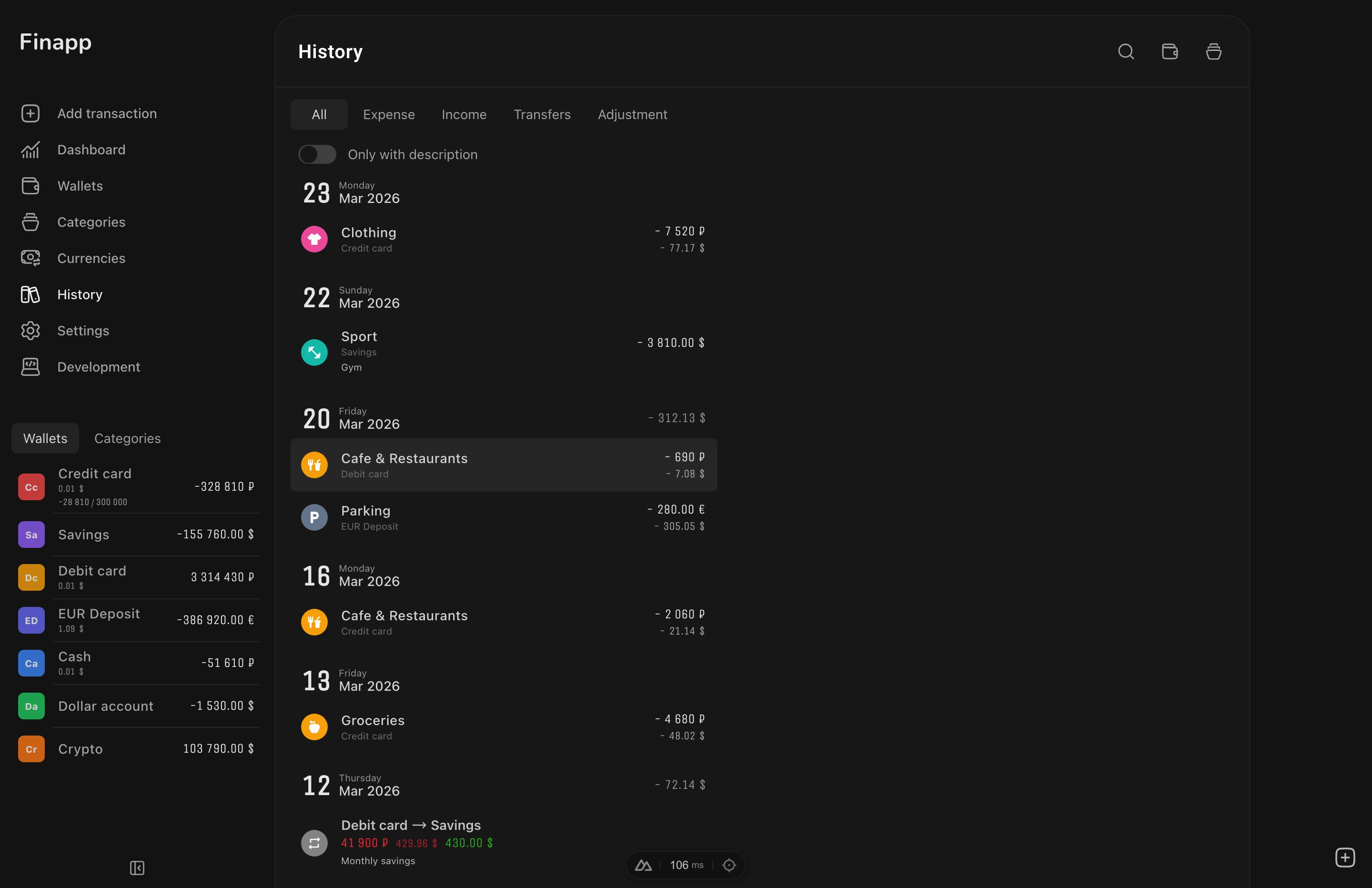
The History page (/history) shows all transactions with filtering and grouping options.
Daily Totals
Each day's header displays the total income and expense for that day.
Filters
Filter by wallet and/or category. Filters are persisted in localStorage - the History page restores your last-used filters on next visit.
Description Filter
When transactions with descriptions exist, a toggle appears to show only transactions that have a description.
Type Filter
Filter by transaction type: All, Expense, Income, Transfer, or Adjustment. Each tab shows the count of matching transactions. Only available when multiple types exist.
Pagination
Transactions load in batches of 30. A "Load more" button at the bottom shows the remaining count.
Next Steps
- Transfers - move money between wallets
- Statistics - analyze your income and expense trends