Statistics
Overview
The statistics page (Dashboard) provides a detailed breakdown of your income and expenses, helping you understand your spending habits. Adjustment transactions are excluded from all statistics.
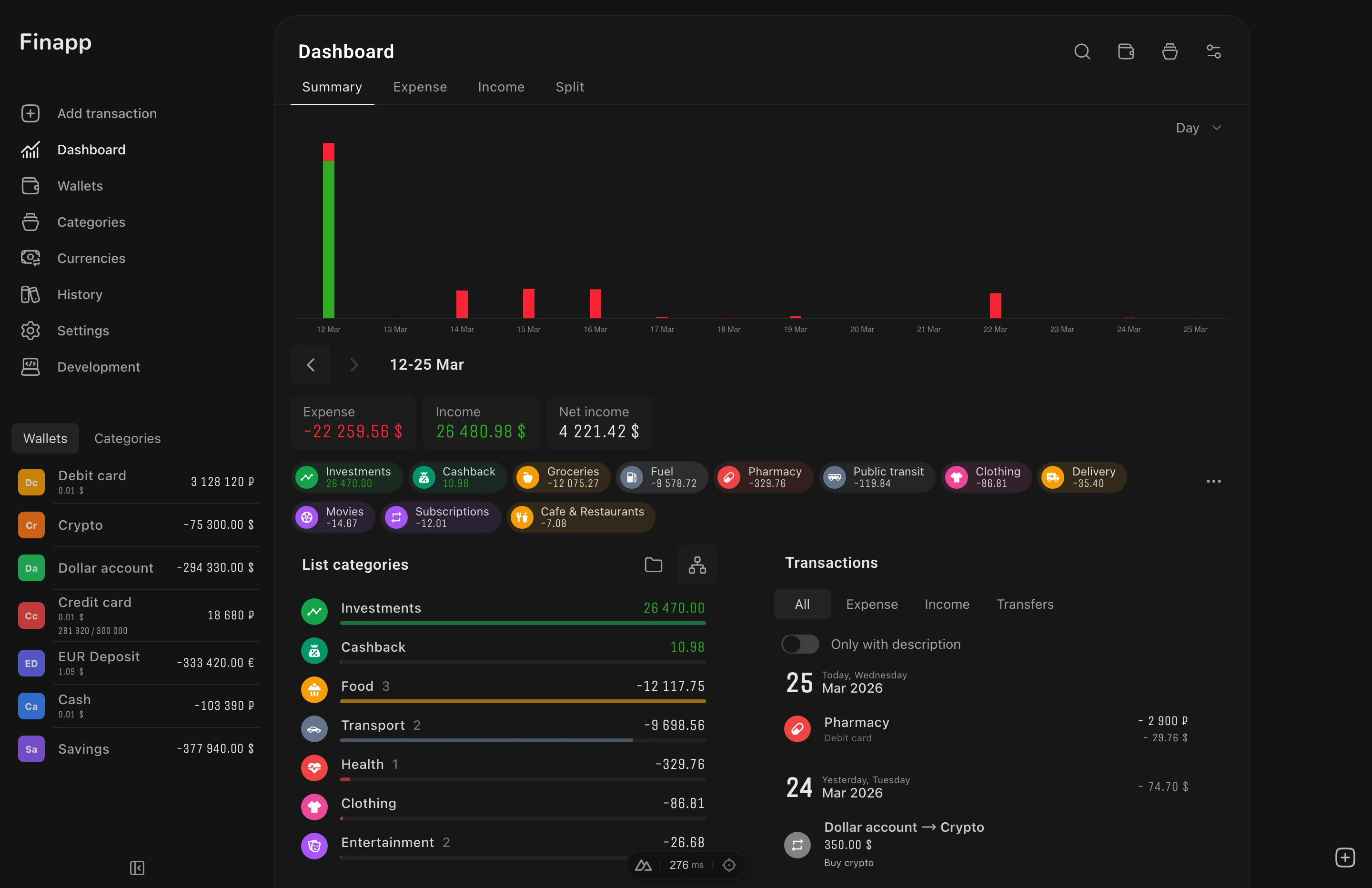
Tabs
- Summary - net result (income minus expense)
- Expense - expense breakdown by category
- Income - income breakdown by category
- Split - expense and income side by side (desktop only)
Split Tab
Displays expenses and income side by side in two columns. Each column shows its own category breakdown, charts, and totals. Useful for comparing the structure of expenses and income within the same period.
Available on desktop only - mobile screens don't have enough space for two columns.
Date Range
Presets: today, yesterday, this week, this month, this year, last week, last month, last year.
Custom range: open the calendar picker and select start/end dates.
Quick slider: swipe left/right to navigate between periods (e.g., month by month). Can be toggled off in settings.
Intervals: group data by day, week, month, or year within the selected range.
Maximum range: show all available data at once.
Charts
Choose between bar charts and line charts. Charts can be hidden entirely. Each statistics tab (summary/expense/income) has its own chart configuration.
Chart View
On desktop, choose between half (compact) and full (wide) chart sizes. On mobile, the chart always uses full width.
Chart Type
Switch between bar chart and line chart per tab.
Average Line
Enable "Show average" in chart settings to display a horizontal line at the mean value across all visible intervals. This is a visual average within the current date range - separate from the historical averages section below.
Category Breakdown
Display Modes
Three visualization modes that can be combined - enable any of them simultaneously:
- List - detailed view. Each category is displayed as a row with icon, name, amount, and percentage bar. Best for detailed analysis - you can immediately see each category's share.
- Round icons - compact view. Small cards with a category icon and amount in two lines. Good for a quick overview when you need to scan all categories at a glance.
- Vertical chart - bar chart where the bar height reflects the amount. A category icon appears below each bar. Provides a clear visual comparison.
Switch between modes in the . Quick presets are also available there: Minimal, Alternative, and Standard.
Additional Options
- Show empty categories - display categories with zero amounts
- Group by parent - group child categories under their parents. Parent categories can be expanded and collapsed.
- Item backgrounds - colored backgrounds on category cards
- Percentage bars - progress bars in list mode
Click to Filter
Click any category in the breakdown to temporarily filter the entire view (chart + transaction list) to that category. Click again to clear the filter.
Type Toggle
On the Summary tab, click the income or expense total to toggle the view between net income, income-only, and expense-only breakdowns.
Filtering
Filter statistics by specific wallets or categories. Multi-select with chip indicators showing active filters. Filters persist between sessions.
Shareable URLs
Filter and date settings are stored in URL query parameters (?filterWallets=...&filterCategories=...). Copy the URL to share or bookmark a specific filtered view.
Averages
Toggle average values display. Adjust the number of periods used for calculation. This shows the historical average over N past periods (e.g., average monthly expense over the last 6 months).
Settings Modal
Open the settings icon on the statistics page. Settings are organized into sections:
Chart
- Show chart - toggle the chart on/off entirely
- Quick date selector - slider for navigating between periods with a swipe (visible only when the chart is enabled)
- Show average line - horizontal line at the mean value
- Chart view - half (compact) or full (wide). Desktop only - on mobile the chart is always full width.
- Chart type - bar or line
Wallets
- Show wallets - display wallet balance summary
- Count - how many wallets to show (from 1 to total)
Averages
- Show averages - display historical averages over past periods
- Period count - how many past periods to use for the average calculation (e.g., 6 months)
Categories
Quick presets for the category breakdown display:
- Minimal - list only, no extra elements
- Alternative - list with colored backgrounds
- Standard - list with percentage bars and round icons
Advanced toggles: item backgrounds, percentage bars, round icons, vertical chart, list, transactions.
Skip Empty Intervals
On category detail pages, the maximum range preset uses "skip empty" mode - intervals with no transactions are collapsed, showing only periods with activity.
Next Steps
- Theme - customize colors, dark mode, and interface appearance
- Settings - configure base currency and exchange rates
- Date Utilities - how date ranges, intervals, and formatting work under the hood