Categories
Overview
Categories help you organize and classify your transactions. They make it easy to understand where your money goes.
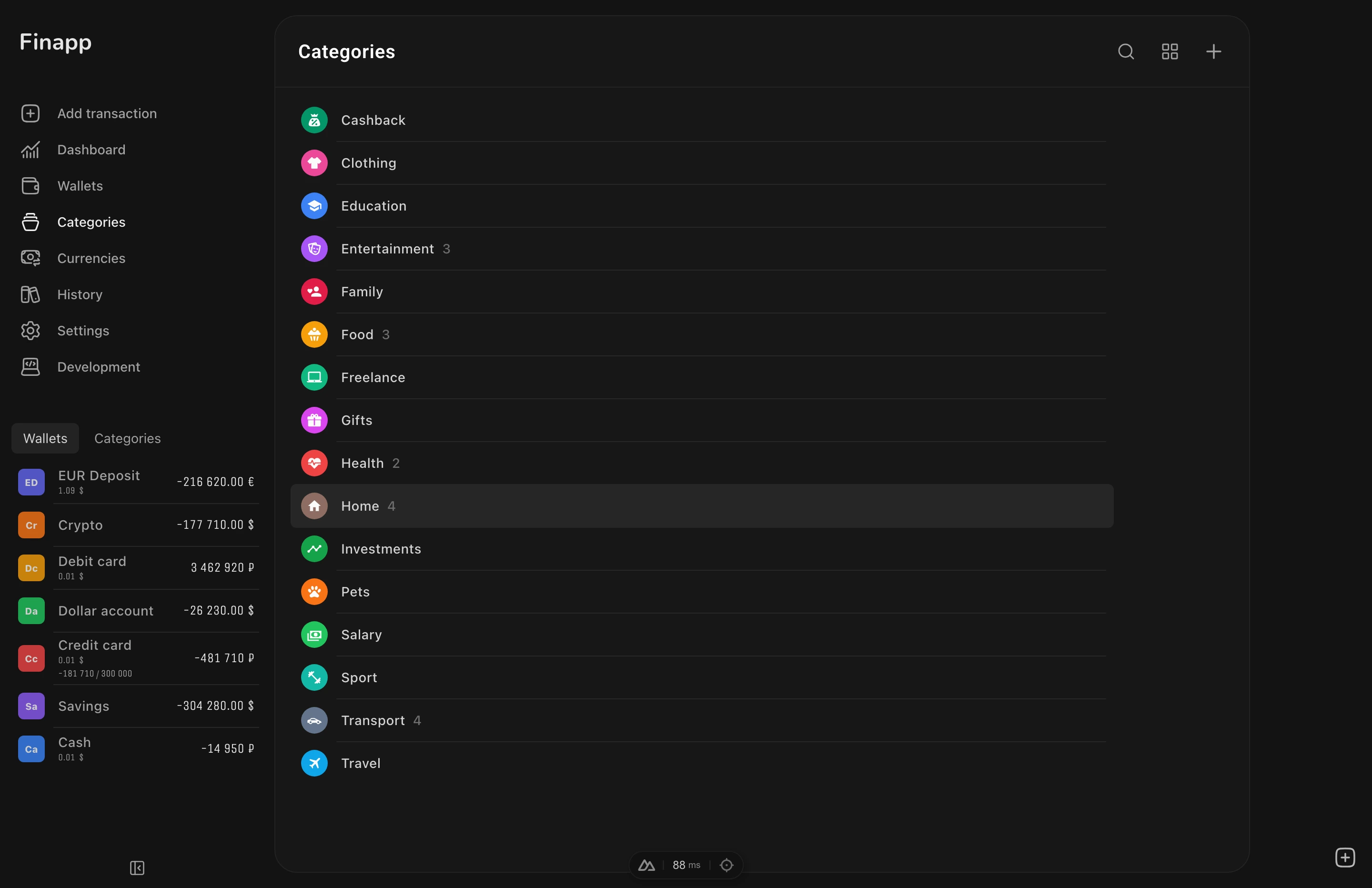
Hierarchical Structure
Finapp supports parent-child category relationships with a maximum of 2 nesting levels (parent and child):
- Food (parent)
- Groceries (child)
- Restaurants (child)
- Coffee (child)
- Transport (parent)
- Public transport (child)
- Taxi (child)
- Fuel (child)
Creating a Category
Go to Categories → New. Fill in:
- Name - required, must be unique within the same parent
- Icon - pick from the Material Design Icons gallery with search. Default: random icon
- Color - color palette picker with icon preview. Default: random color
- Parent - optional, select from eligible root categories
When a parent is selected, the category color automatically inherits the parent's color.
Default settings: Recent is on, Favorite is off.
Optional Settings
For categories without children:
| Setting | Effect |
|---|---|
| Favorite | Shows in the quick selector on the transaction form |
| Recent | Shows in the recent categories list (max 16, sorted by most recent transaction date, no overlap with favorites) |
For categories with children:
| Setting | Effect |
|---|---|
| Apply color to children | Updates all child category colors to match the parent |
Deleting
Deleting a category removes all its transactions. Categories with children cannot be deleted - delete children first.
Special Categories
Finapp uses two special category identifiers that are always present and cannot be edited or deleted:
- Transfer (
transfer) - automatically assigned to transfer transactions. Cannot be used for regular transactions. See Transfers. - Adjustment (
adjustment) - used for balance adjustments. Adjustment transactions are excluded from regular statistics. See Transactions for more details.
Category Detail
Click a category to open its detail page with full statistics. Shows the same tabs as the dashboard (Summary, Expense, Income, Split) filtered to that category.
For parent categories, child categories are displayed in a grid - click any child to navigate to its detail page.
Actions available from the top-right menu: Edit and Delete. The special transfer category cannot be edited or deleted.
Statistics by Category
The statistics page shows spending breakdown by categories with interactive charts, helping you identify your biggest expenses.
Next Steps
- Transactions - start recording expenses and income
- Statistics - analyze spending by category