Authentication
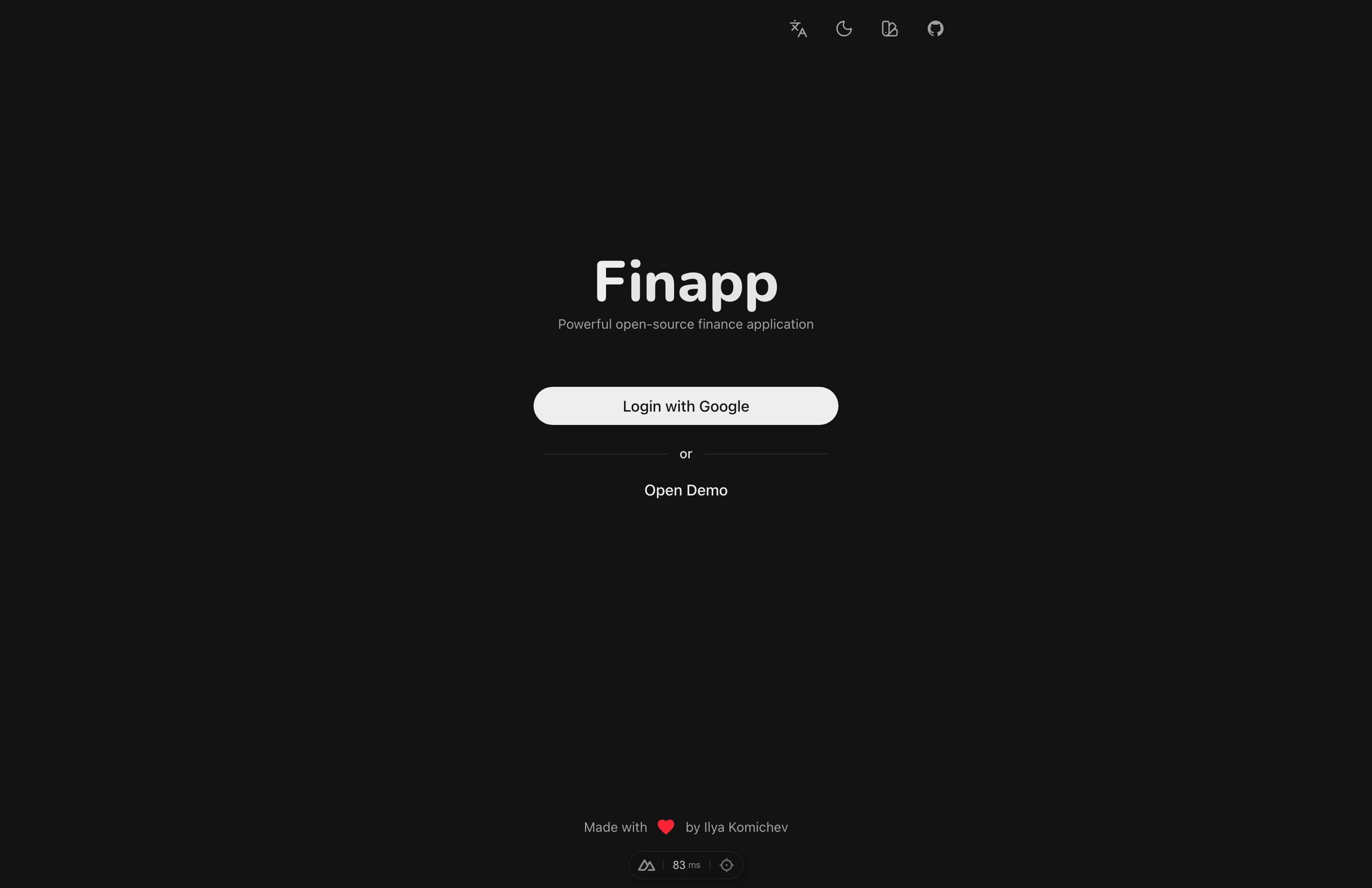
Google Sign-In
Sign in with Google is the quickest way in (you can also use ). Sign in with your Google account to:
- Sync data across all your devices
- Keep your financial data backed up on the server
- Access your data from any browser
How to Sign In
- Open finapp.ilko.me or launch the installed app
- Tap Sign in with Google
- Select your Google account and authorize
- Finapp loads your wallets, categories, and transactions
On first sign-in, Finapp walks you through an onboarding flow: create your first wallet and category to get started.
Email & Password
Prefer not to use Google? Sign in with an email and password instead:
- On the login screen, tap Sign up and enter an email and password to create an account (skip this if you already have one).
- Enter your credentials and tap Sign in.
Email/password accounts sync exactly like Google ones - the sign-in method only changes how you log in, not how your data is stored or synced.
Demo Mode
Don't want to create an account? Use demo mode to explore Finapp with pre-generated data:
- 1000 randomly generated transactions over 2 years
- 18 categories with a parent-child hierarchy
- 6 wallets in different currencies (including an archived wallet)
- All features work - create, edit, delete, statistics
Data is stored locally in your browser - nothing is sent to the server.
See Settings for how to enable, update, or exit demo mode.
Cross-Device Sync
Once signed in, your data syncs automatically across all devices logged in with the same Google account. Changes appear in real time - add a transaction on your phone and it shows up on your desktop immediately.
Your language preference is also synced to the server, so it's restored on every device you log into.
Offline Mode
Finapp works without an internet connection. Here's how it works:
What happens when you go offline
- The app continues to work - data is loaded from a local cache
- You can create, edit, and delete transactions, wallets, and categories
- All changes are saved to a queue on your device
What happens when you reconnect
- Queued changes are automatically sent to the server
- The queue is processed in order: wallets, categories, transactions, settings
- If you created a wallet offline and then added a transaction to it - the relationships are preserved correctly
Limitations
- Exchange rates don't update without internet - the last cached rates are used
- Cross-device sync only resumes once you're back online
Sign Out
Go to Settings → Sign Out. Signing out clears all local data from the device. When you sign back in, everything syncs back from the server.
Account Deletion
To permanently delete your account and all data, go to Settings → Delete All Data. This removes all wallets, categories, and transactions from the server. The action requires confirmation and cannot be undone.
See Settings for details.